


How to Preview and Download Your Resume on CareerZenith
Once you have completely built with your resume, the final step is to preview it and download the finished version.
Step 1: Check your resume in Preview Mode
Before downloading, switch to Preview Mode.
This shows you how your resume will look in the final downloaded version, without the editing controls.
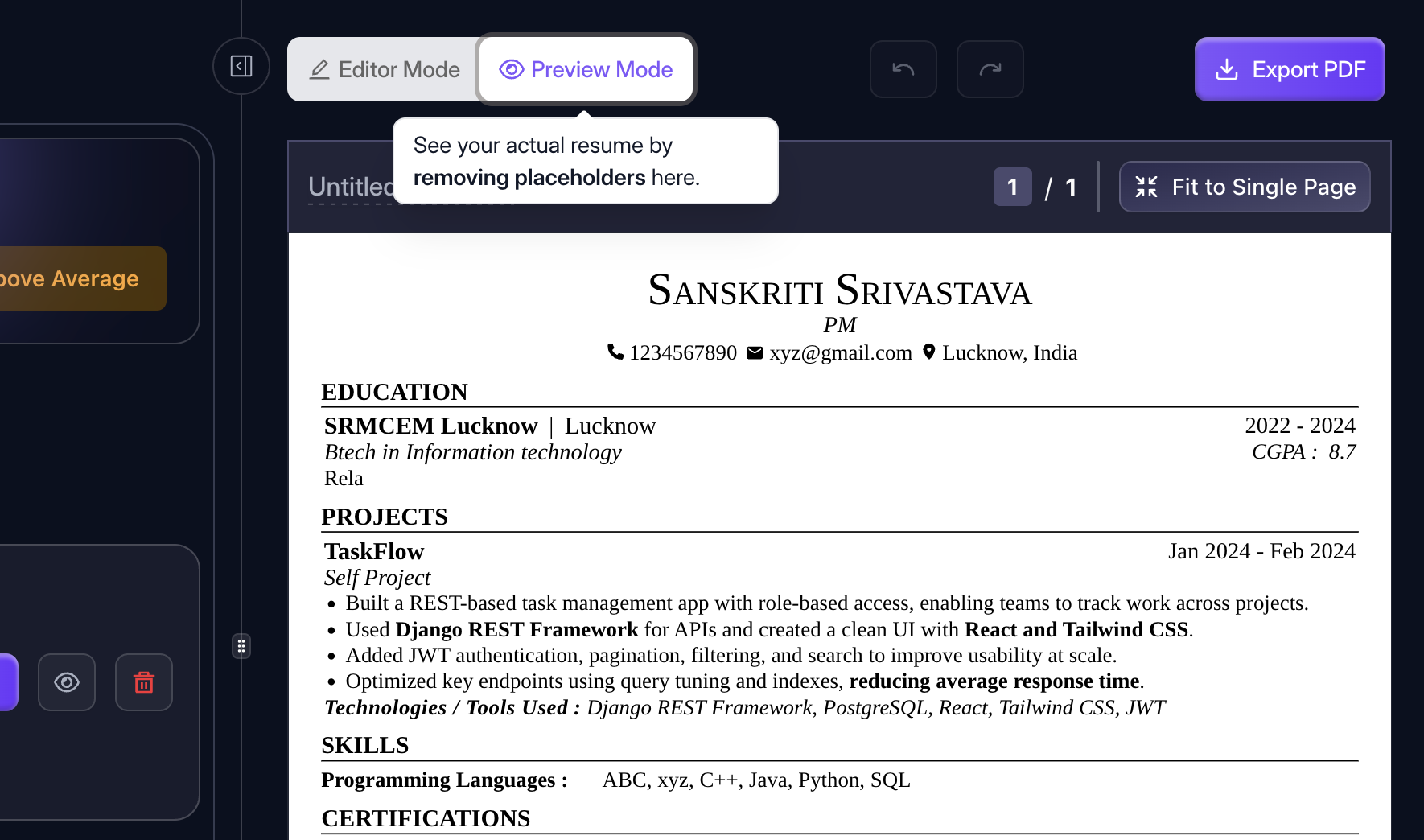
Tip: Always preview your resume once before downloading, especially after making layout or formatting changes.
Step 2: Export your resume
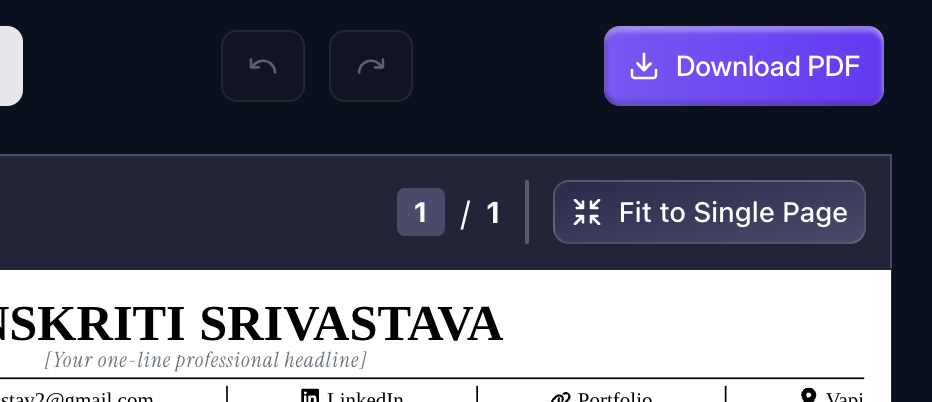
When everything looks right, click Export.
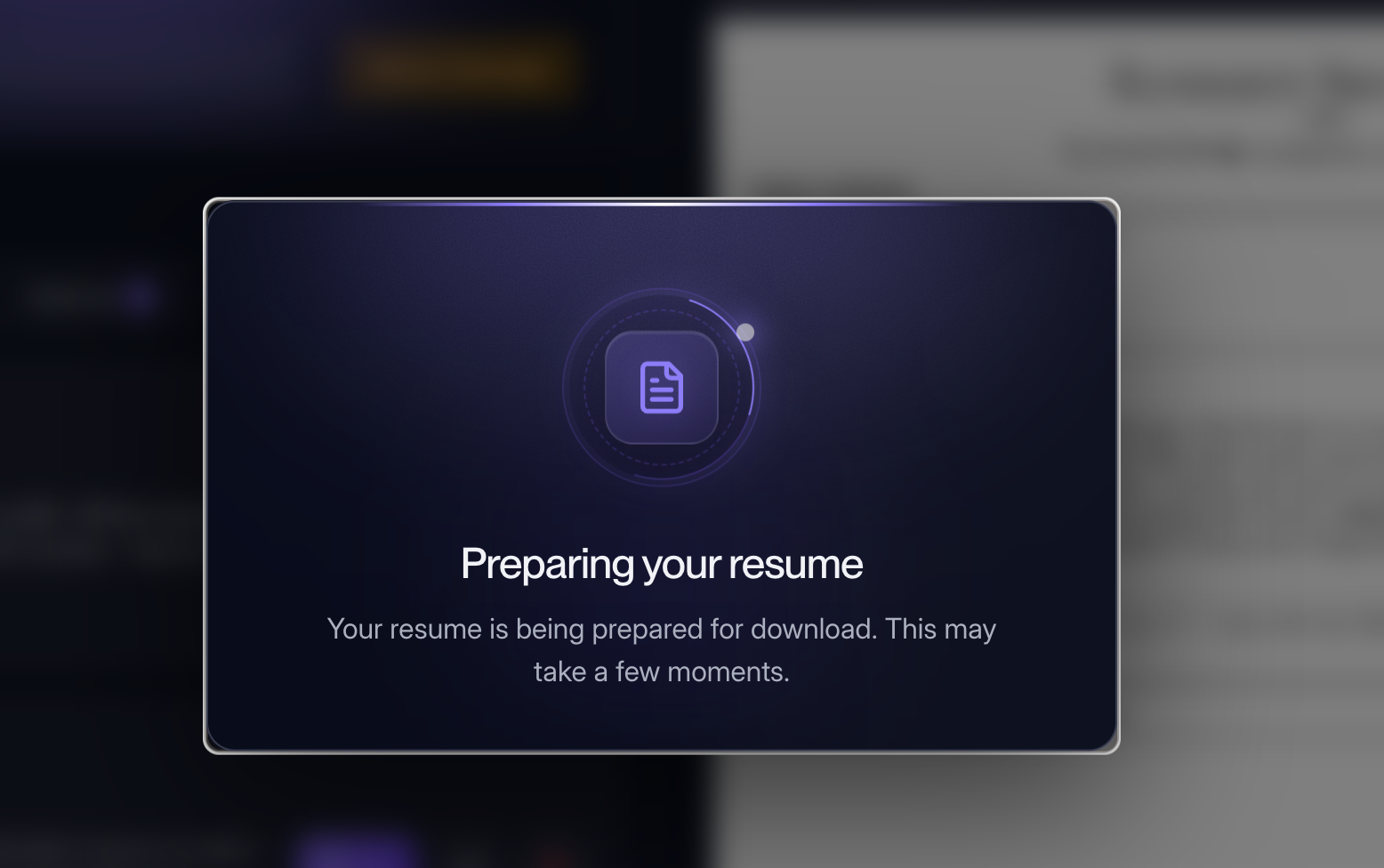
Exporting prepares the latest version of your resume for download.
Think of it as generating the final resume file from the version you have created in CareerZenith.
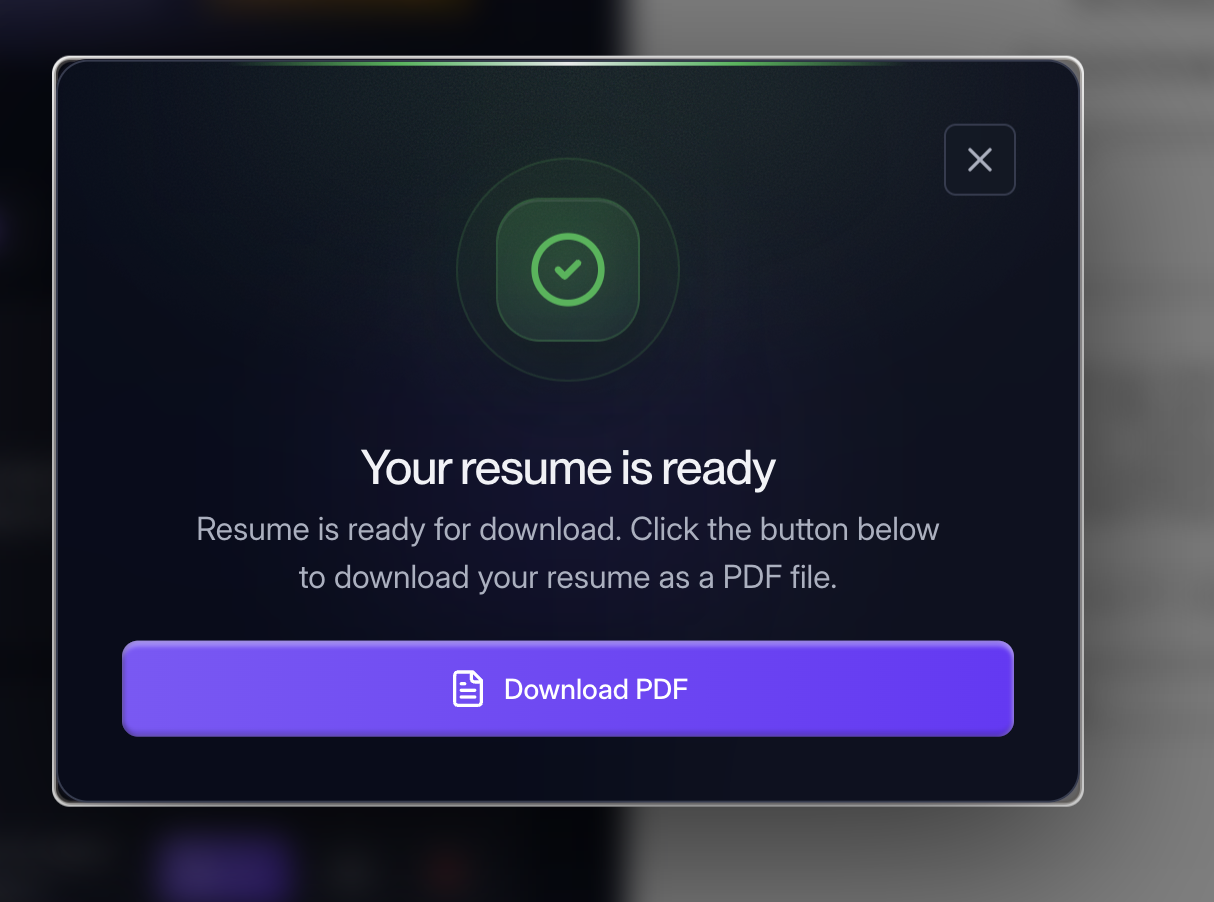
Step 3: Download the exported resume
Once the export is complete, click Download to save the resume to your device.
So the complete flow is:
Preview → Export → Download
Before you apply
It’s a good idea to open the downloaded file once and do a final check for:
Correct contact details
Working links
Proper formatting
No accidental empty sections
Correct page count
Latest resume content
Once everything looks right, your resume is ready to use for applications.


Discussions